

Navigation using a shortcut
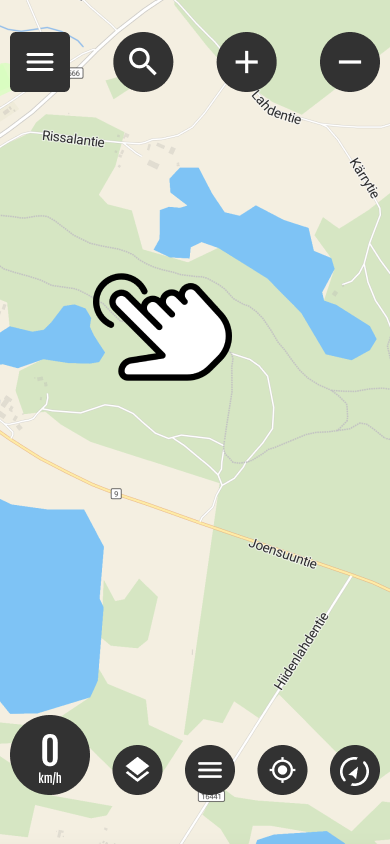
Select destination from the map
You can quickly start navigation by long-pressing on the desired item on the map (long press)
Pressing opens where routing settings are selected.
Select routing option and navigation method
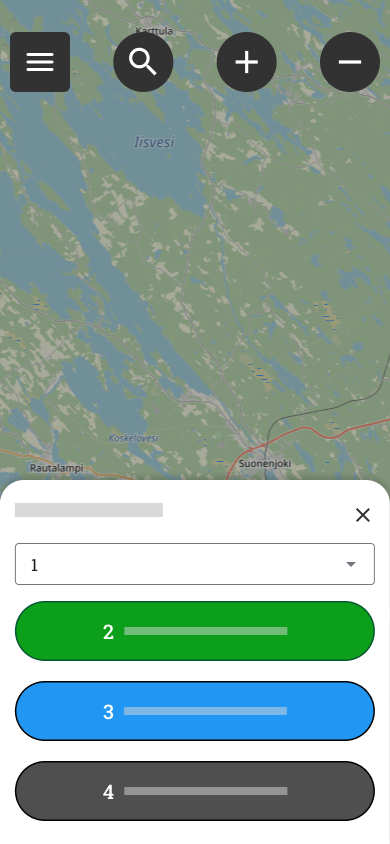
1 routing options
Motorbike
- The most direct route: Only drive on official roads designated for motor vehicles.
- Allow routing for paths: Use caution. The route may also include narrow paths, cycle paths or other sections unsuitable for motorcycles.
Bicycle
- The most direct route: Guides you to your destination along the most direct route, but avoids off-road paths.
- Allow routing for paths: Also utilize small paths and shortcuts in the terrain when routing.
2. Follow the route (Unguided)
This mode shows the route to the destination on the map, but does not provide separate driving directions.
3. Navigate (guided and voice control)
This feature guides you to your destination using visual instructions and voice guidance.
While navigating, you can:
-
To look at the whole: View the entire route at once.
-
Manage sounds: Turn driving instructions sounds on or off.
-
Explore the environment: Browse the map freely while navigation is in progress.
-
Return to view: Centers the map back on your location.
-
Stops navigation: End the tour at any time.
4. Pause creating a shortcut
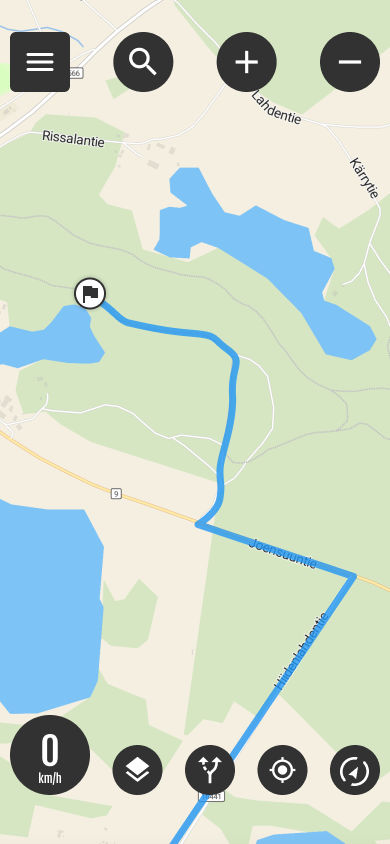
Active express route

The Active Route button allows you to:
- Starts route navigation if you have been following a route
- Hides the route
- Pauses the route





 Finnish
  English
  Swedish
  German
  French
  Spanish