

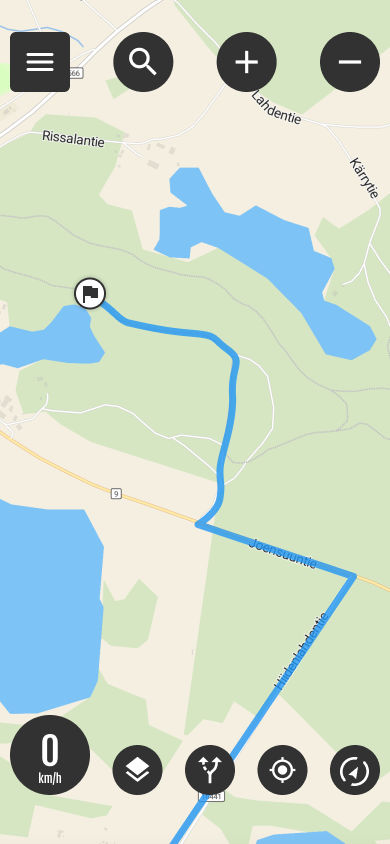
My own and imported routes

Routes button
Open the menu, you will see own and imported your route. Select the desired route on the map by tapping The menu closes and the route is drawn on the map.
- The assumption is that Follow the route You can change the status from the active route settings.

Active route
The Active Route symbol indicates that a route is selected on the map.
- When you open the menu again, you will see the length of the route.
- You can also hide the route by pressing "Hide” button. Browsing the map may be easier if the route is not visible.
- You can change '’Follow the route’' mode to guided navigation by pressing (Navigate) button.
You can pause the route by pressing the Active Route button and selecting “Pause”".
Importing a route to My routes
You can import a route into the application in GPX format. The import is done through the application via the main menu.
- Open Menu
- Select Imported routes
- Select Import GPX file
- Select the file you want
- The file is imported and added. Imported routes
- You can also open the GPX file directly on your phone
Route planning on the web
Plan your route carefully in advance on your computer and then open it in the mobile app.






 Finnish
  English
  Swedish
  German
  French
  Spanish