

Instructions on how route planning works
Need help using the app? See the function and related instructions.
You can also use search to find instructions.
Login
- Download the Bikenavi app From the AppStore or From GooglePlay
- Tea account and log in to the application
- An account is created using an email and password.
- Account verification is done using a link sent to your email.
- After verification, you can use the app but the functions are limited.
Order and trial
- Place an order on mobile or try the app with all features
- Choose a suitable subscription duration 1, 6 or 12 months
- You can try the app 7 days upon order
- Log in to the application (app.bikenavi.fi) with the same credentials.
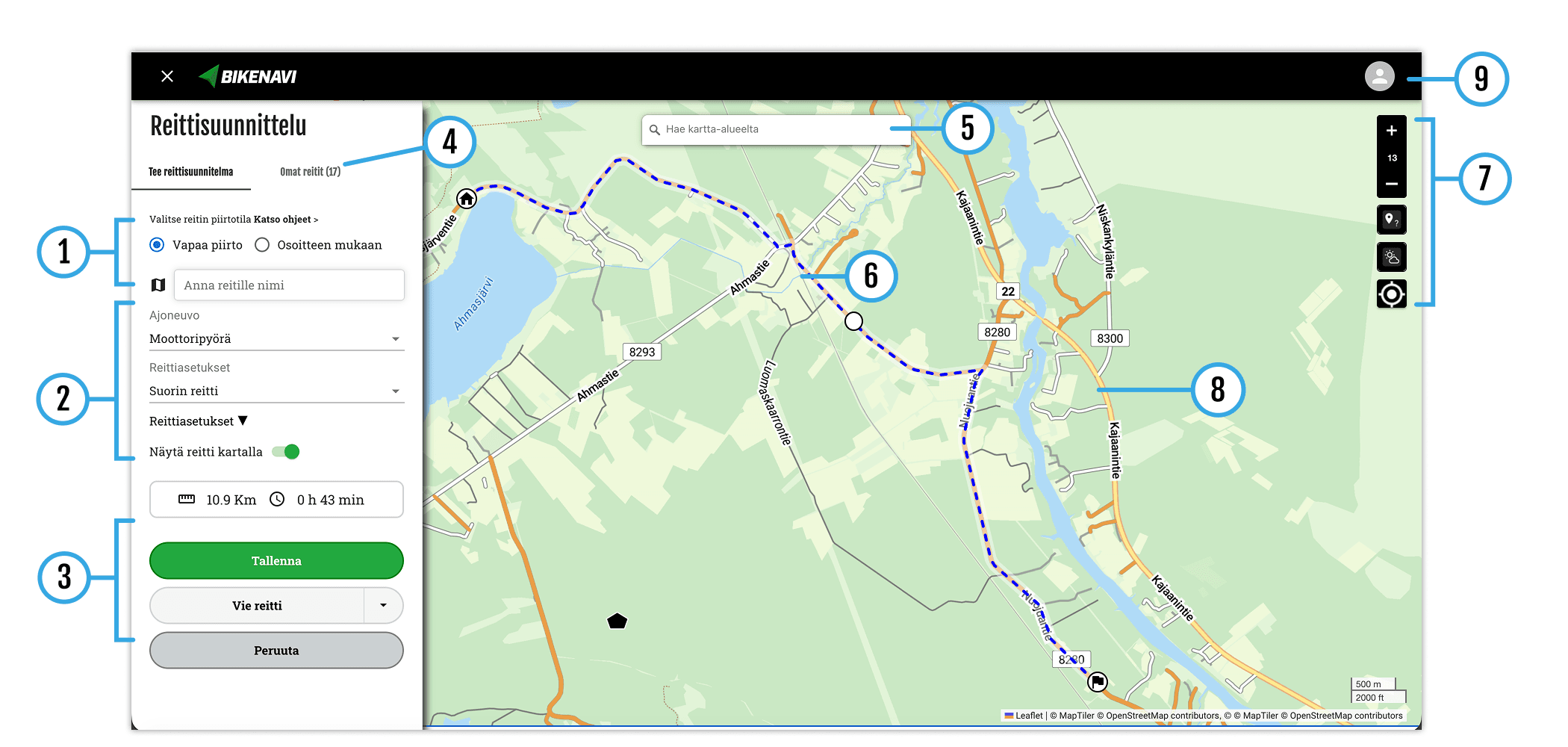
Option 1: Draw freely
- Add or remove waypoints right-click. If you are using a phone or tablet, add a period long press.
- You can move all the points you have added freely on the map and also add waypoints to the route.
Functions on the map, mouse right handle.
- Add waypoint
- Delete waypoint
- Google Street View
View
If you are using a phone or tablet, the functions will appear long press.

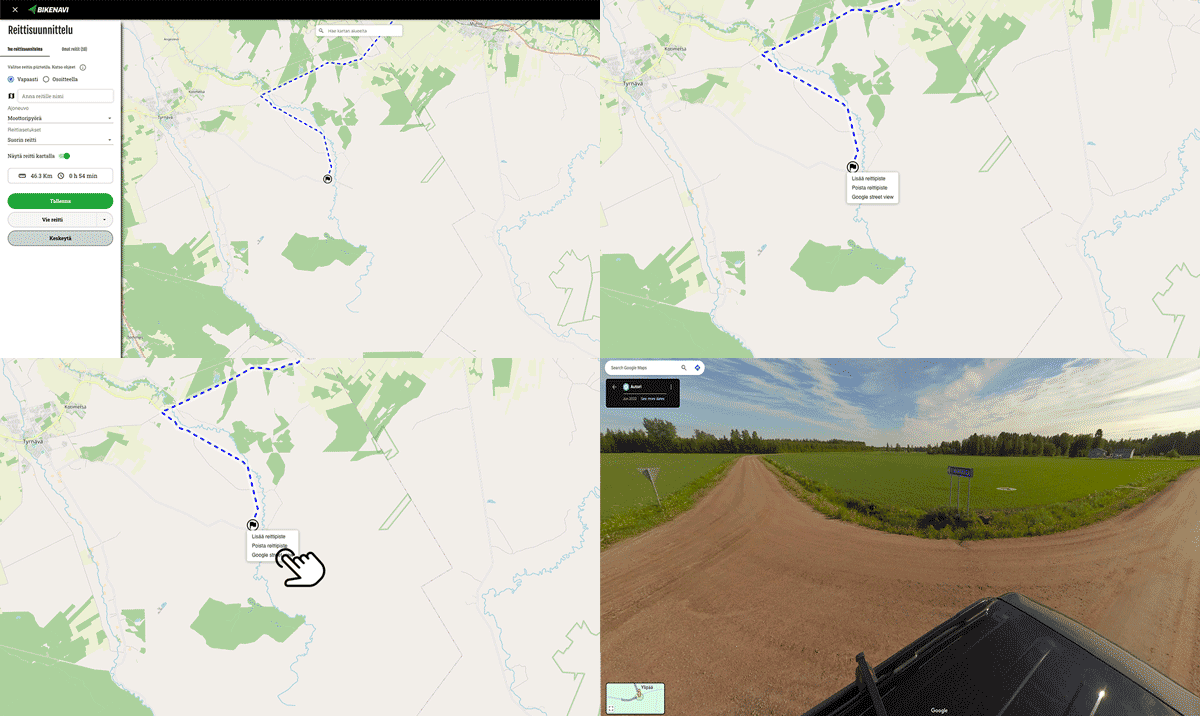
1. Add the desired starting point
- Use on a computer right mouse button.
- On your phone or tablet long press.
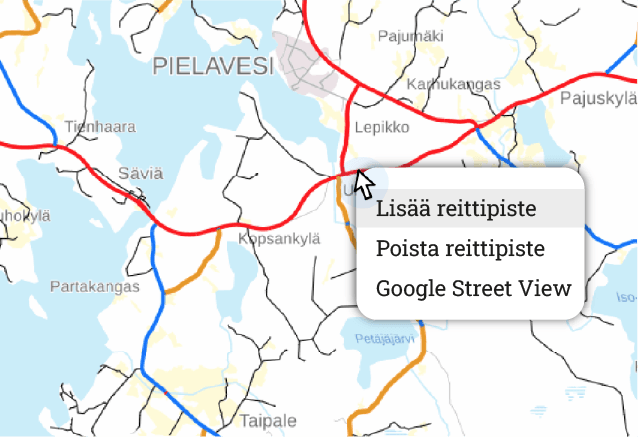
2. Create a route by adding points
- It is a good idea to add waypoints, for example, to turns. (The route calculation can be adjusted if there are too few points.)
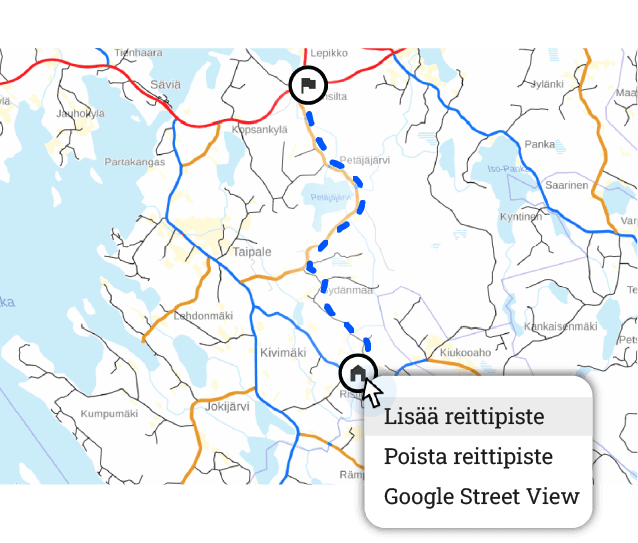
3. Add waypoints
- Waypoints help you plan a complex route.
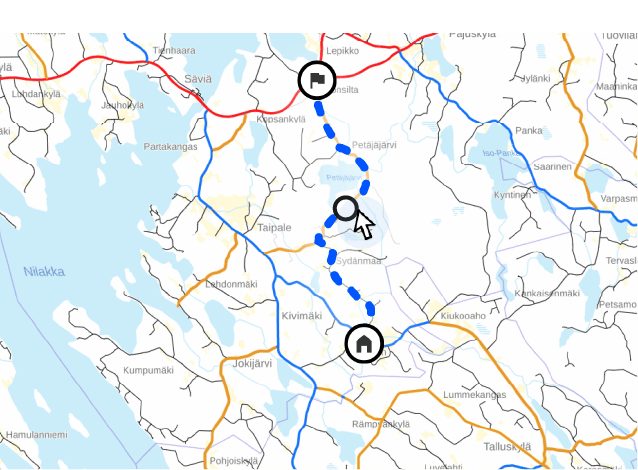
4. Adjust the route if desired
- You can move all waypoints.
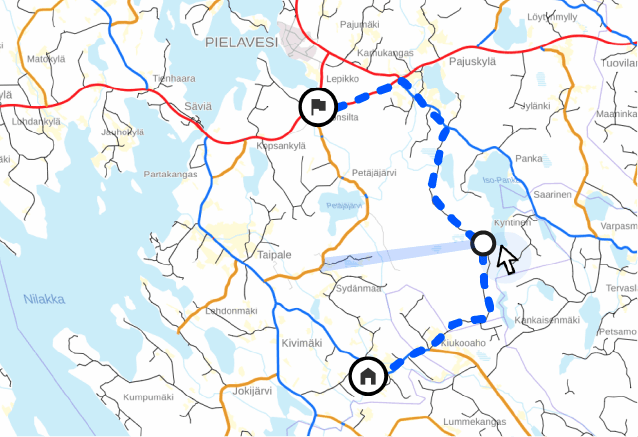
Option 2: Use addresses as a guide
- Change drawing mode from selection
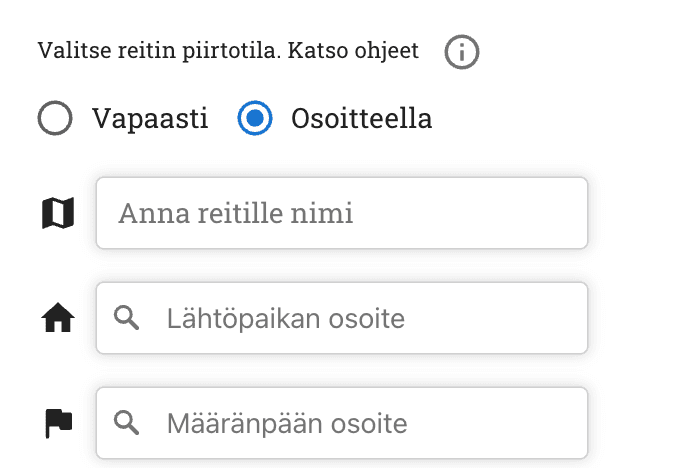
You can easily make a longer route by entering
- Departure address
- Destination address
- Intermediate stages
- All points can still be moved
1. Add your desired departure point and destination
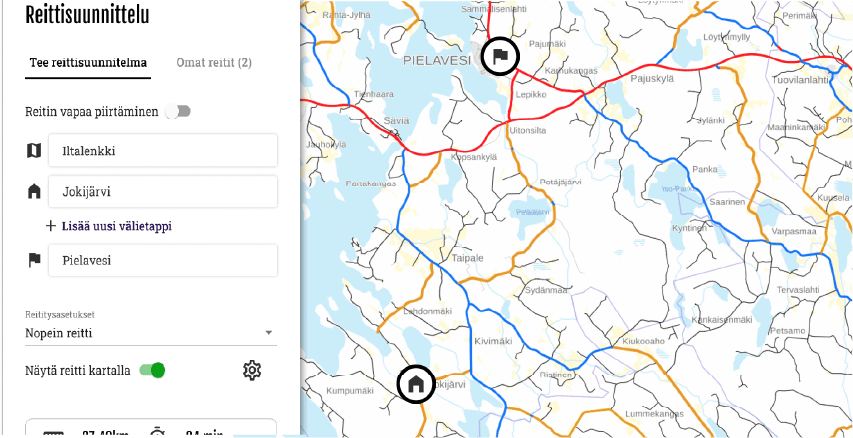
2. Create a route by adding waypoints
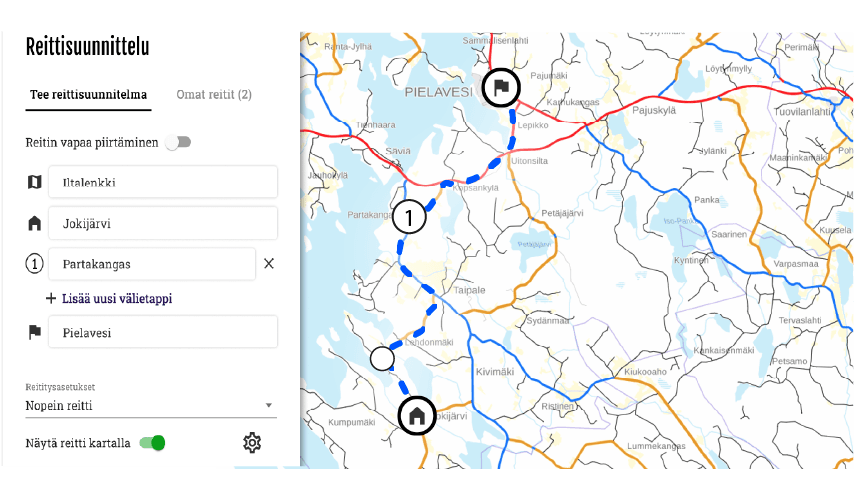
3 You can add waypoints and waypoints to your route
-
Waypoints help you create a complex route.
- You can adjust the route by moving waypoints and intermediate stops.
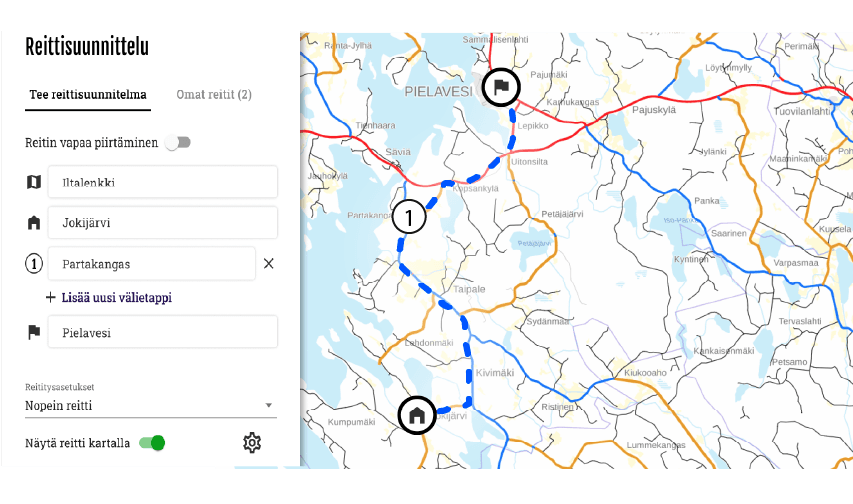
Vehicle
You can choose as a vehicle
- Motorcycle
- Bicycle
Routing settings
There are two basic choices in routing settings
- Fastest route
- Allow routing on paths. The route may include small paths, ensure drivability!
With advanced routing options, you can:
- Avoid motorways if you want to drive on quieter routes or enjoy the scenery without high speed limits.
- Avoids ferries, making the route entirely overland without crossing waterways.
- Avoids toll roads, routing to toll-free sections.
- Avoids unpaved roads, so the route only runs on paved sections
Hiding the route
- Option to hide/show route on map
Recording
Once you have planned your route save route. The route is saved My routes tab.
Export
- You can open a saved route in the Bikenavi mobile app
- You can export the route as a GPX file* to your desired navigation device or application
- Press the “Export route” button and select the desired file format
- Export route advanced functions My routes / New route
* GPX is a file format that allows you to transfer a route to another device or application.
Pause
- This function interrupts route creation, no data is saved.
My routes
- Saved routes can be found My routes from the tab
- The newest route is at the top.
- Activities on the route behind 3 points:
- Route deletion
- Switching to editing mode
- Route export
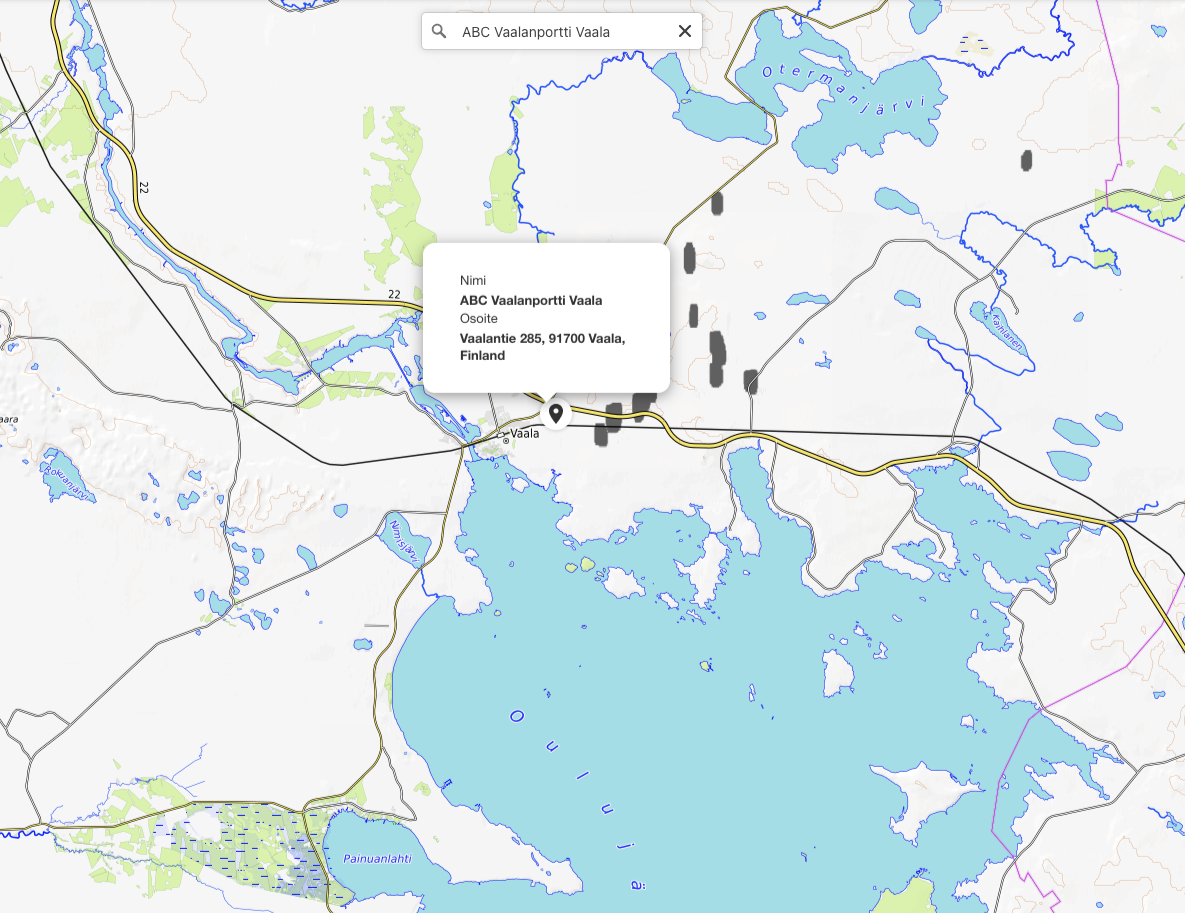
Search within the map area
You can search for a gas station or individual address in the visible map area to help you plan.
You can search by typing in the search field:
- Name (Vaasa or Neste Oulu Bar)
- Address (Isokatu 10, Oulu)
- Category (e.g. gas stations)
Add or remove waypoints right-click. If you are using a tablet, add a period long press.
- You can move the points you added freely on the map
- You can also add waypoints to your route
- To delete points from the map, zoom in on the point first (you cannot delete a point from a distance)
Activities on the map, right mouse button or long press
- Add waypoint
- Delete waypoint
- Google Street View
View
Map bases
Bikenavi offers 6 different map base options.
Navigation
(requires subscription)
The map emphasizes the precise road network and highlights key location information. It provides a clear and detailed overview of the area, making it easy to navigate and choose routes. Unpaved roads are also clearly visible in the road network., so you always know in advance what kind of road awaits you.
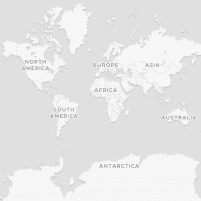
Plain
(requires subscription)
A minimalist and clear map that highlights the road network, trails and key location information. High contrast without distracting details makes navigation easy in all conditions.
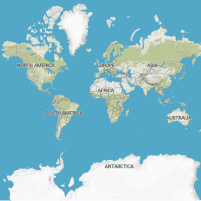
Terrain
(requires subscription)
Shows terrain features with clear contour lines and shading, and highlights key location information. The map combines elevation data and water bodies into an accurate and easy-to-read entity.
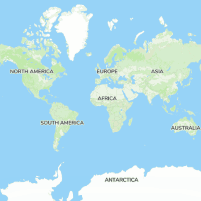
Outdoor
(requires subscription)
A map especially for cyclists and outdoor enthusiasts. The map brings the terrain to life by clearly highlighting even the smallest details and contains many ready-made routes from different countries.
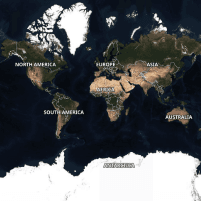
Aerial view
(requires subscription)
Accurate satellite images help to visualize terrain in real-world conditions. Aerial photography is an invaluable aid, for example, in choosing the best camping spot or landing spot.
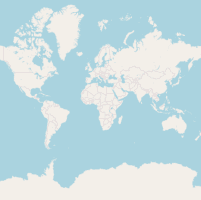
Basic
A base map based on OpenStreetMap data provides an overview of the surroundings. This is the only map option available in the free version of the app.
The following location information is highlighted on the maps:

Gas stations

Picnic areas

Campfire sites

Campsites

Protections

Desert huts

Accommodation

Bargain

Viewpoints

Attractions
Weather information
Weather functions can be found directly in the route planning view (app.bikenavi.fi).
You can view the weather forecast hourly for up to five days.
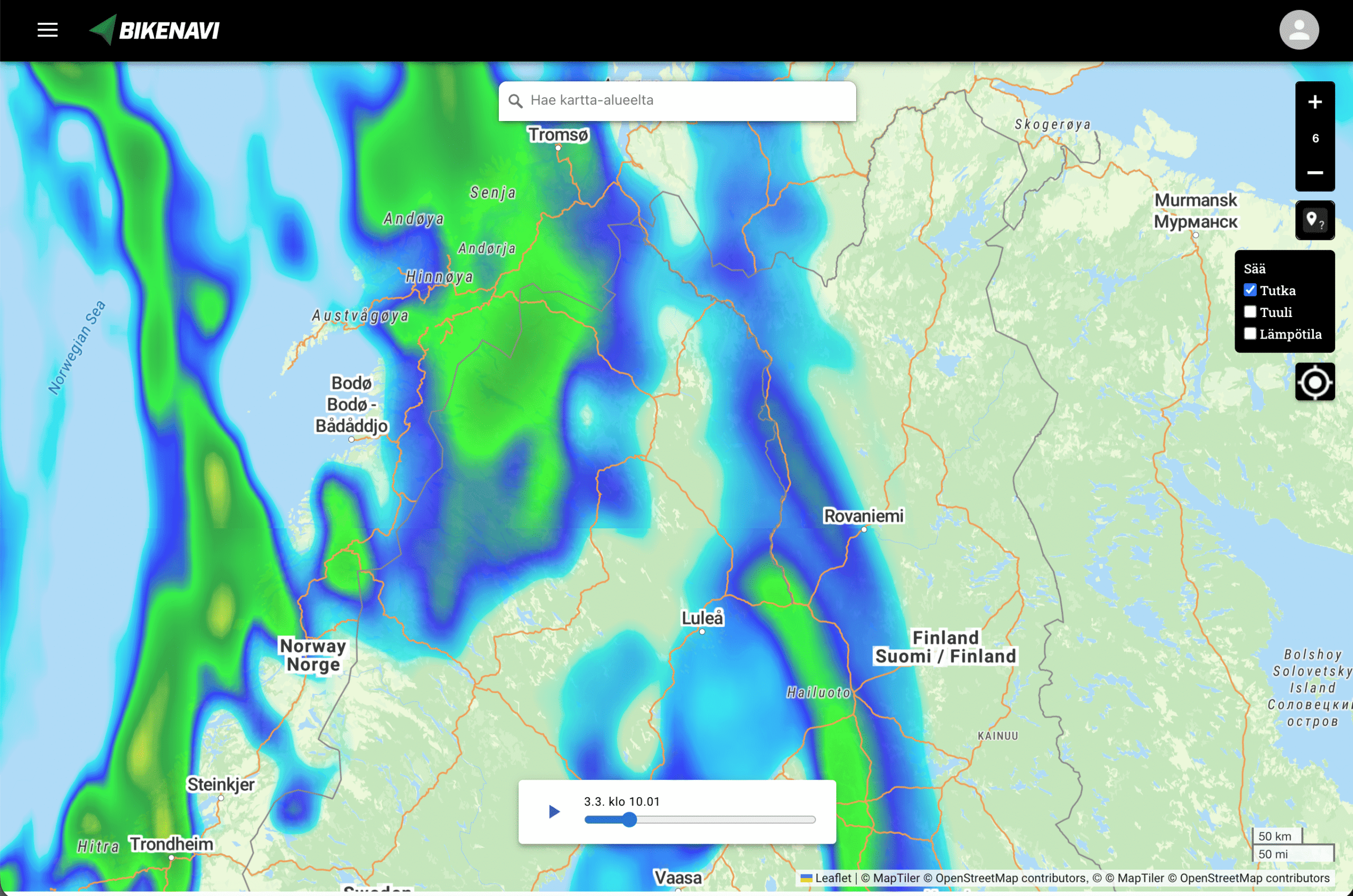
Real-time rain radar: Follow the movement of the fronts and time the breaks correctly.
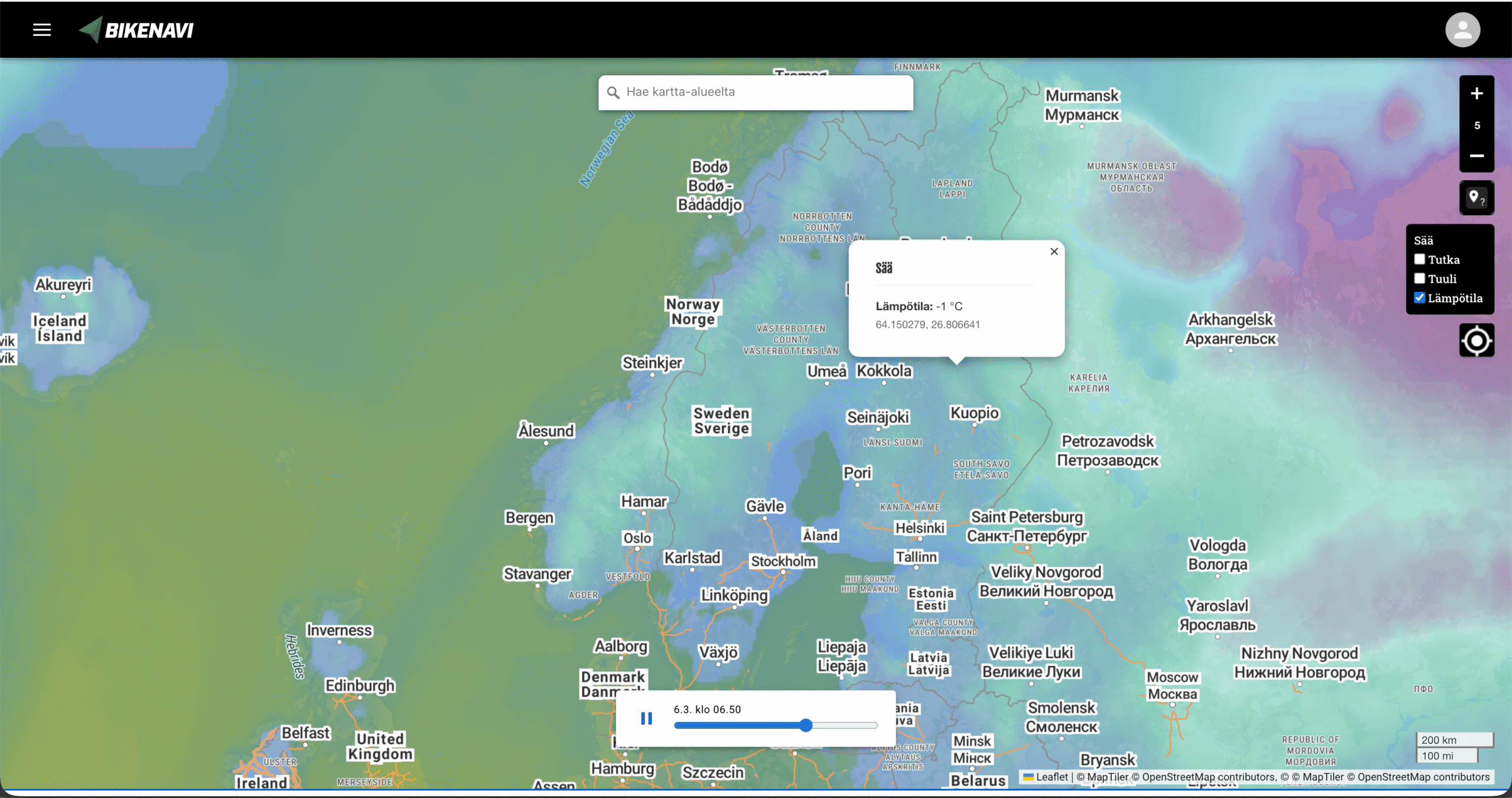
Ltemperature: Check the conditions along the route and choose the right equipment.
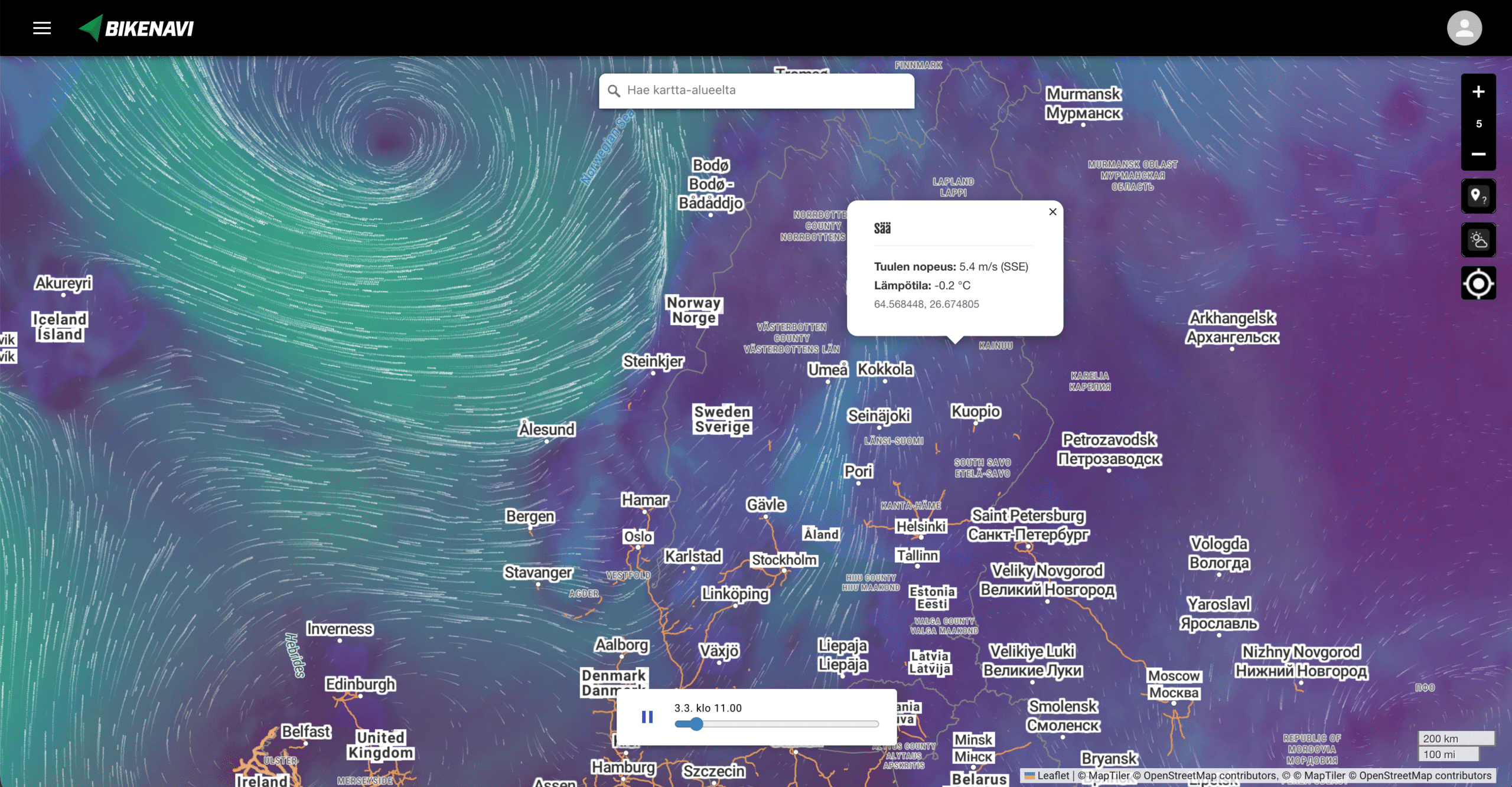
Wind: Check the conditions along the route and choose the right equipment.
Error: The application requires a subscription
If you have placed an order but the app.bikenavi.fi application states 'The application requires a paid subscription', log out and back in. This action will update your order status and fix the problem. If the message does not disappear, please contact our customer support.
Profile and settings
In settings you can:
- View your current order and
- change default vehicle (motorcycle / moped)
- Open instructions in a new tab
- Open and see what's new in the app
- Log out of the app
The saved route is immediately visible in the Bikenavi mobile app.
Have you purchased a Bikanavi subscription? The free version has limited functionality.
You can download the app:
- From the AppStore
or
- From Google Play
Yes, you can try Route Planning by subscribing to Bikenavi in the app store. The trial lasts for 7 days when you subscribe.
You cannot use app.bikenavi.fi-route planning application for navigation, but With the Bikenavi mobile app navigation is successful.
If you can't find the answer to your question, use the search. You can also contact us!

 Finnish
  English
  Swedish
  German
  French
  Spanish